How to Plan a Livestream That Doesn’t Fall Apart
Livestreams don’t usually fail because of one huge mistake. They fail because small gaps stack up: unstable internet, unclear cueing, audio that isn’t broadcast-ready, media playback issues, or a run-of-show that nobody “owns” in real time.
If your event includes speakers, slides, video playback, or remote guests, this planning applies.
Use this as a practical checklist to keep show day calm and the stream stable.
The good news: most livestream problems are preventable with early technical planning.
The 5 Things That Break Livestreams Most Often
1) Internet that isn’t truly stream-ready
A venue may say “we have Wi-Fi,” but that doesn’t mean it’s stable enough for a live broadcast — especially once doors open and the room fills with devices.
Plan for:
— A hardwired connection whenever possible
— A backup option
— A proper test window before the program begins
2) Audio that works in-room but not online
Room audio and broadcast audio aren’t the same thing. What sounds “fine” in the room can sound thin, quiet, or uneven online.
Common causes:
— Inconsistent mic gain from person to person
— No defined broadcast mix for remote viewers
— No plan for Q&A audio (when needed)
3) Cueing that isn’t defined
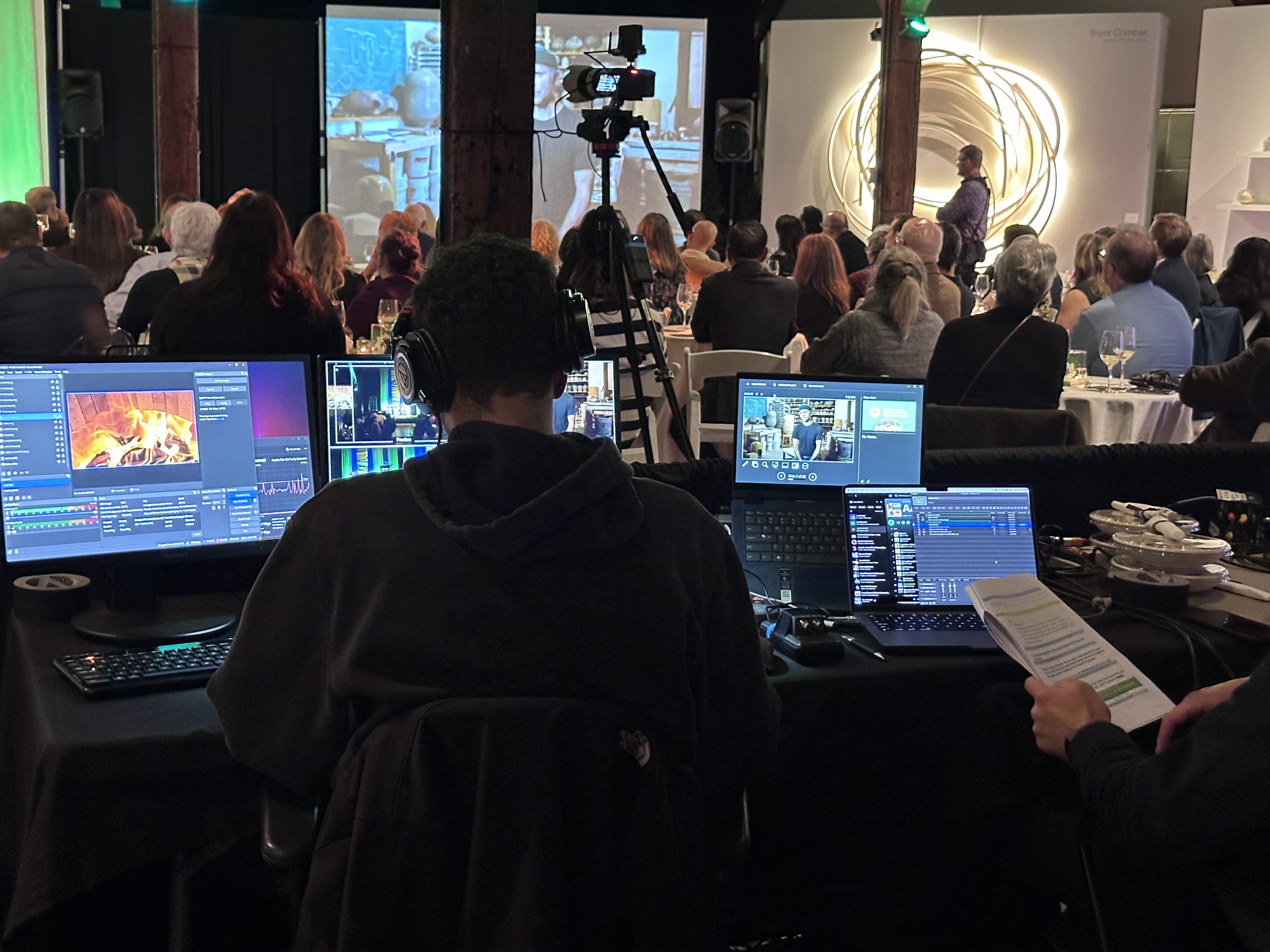
A livestream is a moving show: speakers change, slides advance, videos roll, remote guests join, and transitions need to be managed.
When cueing is vague, you get:
— Awkward delays
— Missed moments
— Last-minute scrambling
4) Media playback issues
Playback is one of the biggest “quiet failure points” in live programs.
A common situation: a “final” keynote video arrives last-minute, the format doesn’t play smoothly, or the audio level is completely different than the rest of the program. The result is a stalled run-of-show — and a livestream audience watching someone troubleshoot.
The fix: assign playback ownership, test files early, and keep a backup version ready.
Livestreaming Services
5) No redundancy
Things happen: files corrupt, a laptop freezes, the run-of-show changes, or a connection drops.
Redundancy doesn’t mean overbuilding — it means having a Plan B for the few things that can ruin the show.
What to Confirm With the Venue Before You Arrive
If you only do one planning step, do this: confirm venue realities early.
Internet
— Is there a dedicated hardwired connection available?
— Where is network access located relative to the tech position?
— Can we test the connection during a busy time window?
Power and location
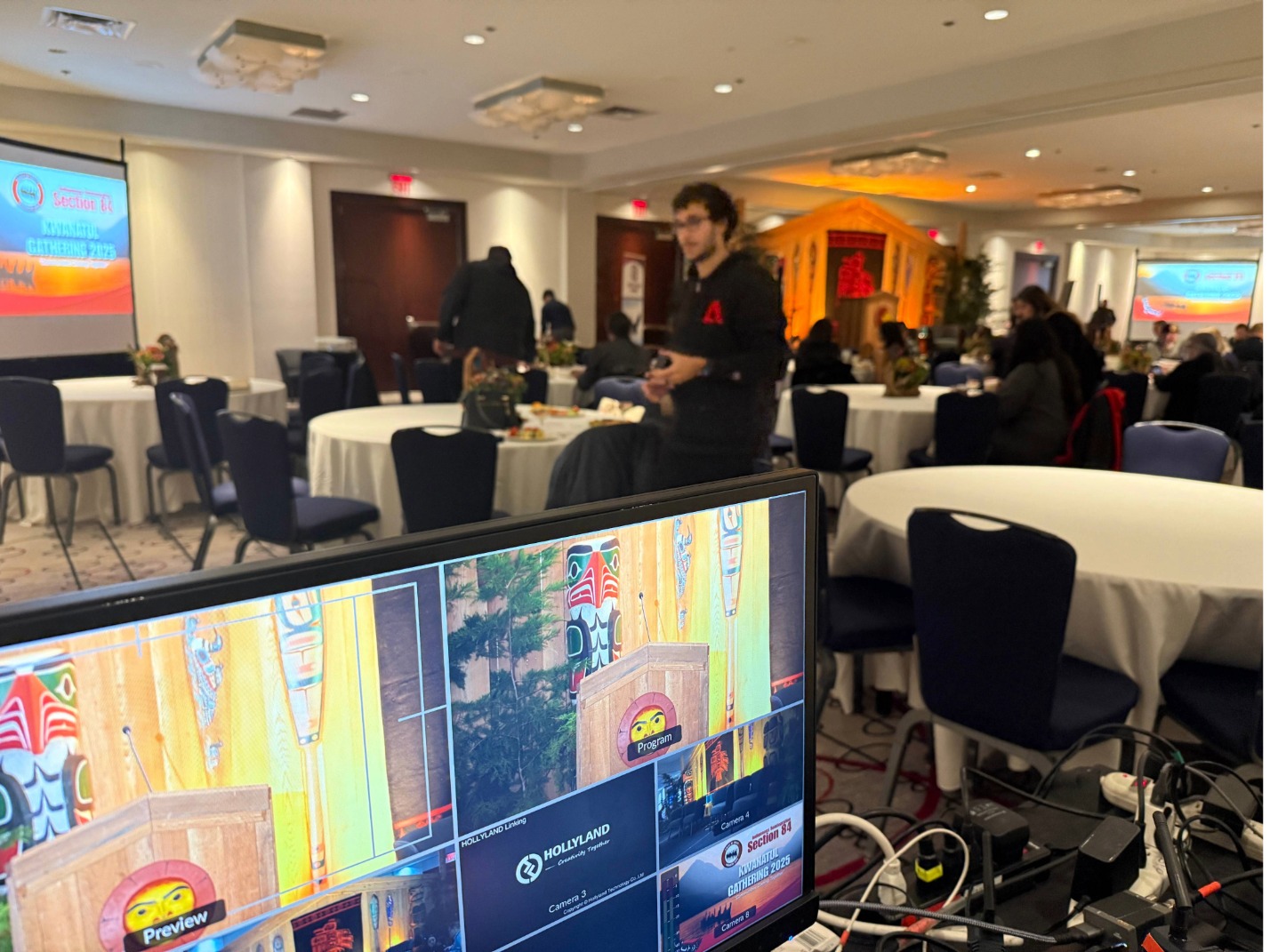
— Where will the tech table be located?
— Are there clean power sources nearby?
— Is the position safe from foot traffic and last-minute room changes?
Sightlines and layout
— Where will speakers stand and move?
— Where is the projection or screen?
— Where can cameras go without blocking the room?
Load-in and schedule
— When can production load in?
— Is there a quiet soundcheck window?
— What time do doors open (and when does the room fill)?
None of this is glamorous — but it protects the program.
Run-of-Show and Cueing Make or Break the Stream
A livestream doesn’t just “run.” It’s executed.
A strong run-of-show includes:
— Start time (hard start vs flexible start)
— Speaker order and transitions
— Slides, videos, walk-ups, Q&A
— Remote guest timing (if applicable)
— Who owns each cue
Key question planners must answer:
Who owns cueing in real time?
Examples:
— Who advances slides?
— Who triggers video playback?
— Who signals livestream transitions?
— Who has final authority if something changes?
When cueing is clear — and tested — the livestream feels professional even when changes happen.
Broadcast Audio Is Different Than Room Audio
If your livestream depends on people hearing every word, audio can’t be treated as “just another input.”
Principle:
Room audio is designed for people in seats.
Broadcast audio is designed for headphones and speakers at home.
Broadcast audio planning focuses on:
— Consistent levels from speaker to speaker
— Clarity over volume
— Clean routing
— A plan for room questions (only when useful)
If you’re livestreaming a panel, keynote, ceremony, or hybrid event, broadcast audio is the difference between “watchable” and “professional.”
The Backup Plan That Saves Shows
Backup planning doesn’t have to be complicated. The goal is simple: avoid single points of failure.
Backup playback
— Two copies of critical videos
— Clean file organization
— A designated playback owner
Backup recording
Even if the livestream hiccups, the program should still be captured cleanly for post-event use.
Backup decisions
— If a remote guest drops, do we continue?
— If a video won’t play, do we skip or replace it?
— Who confirms last-minute changes?
When these decisions are agreed in advance, the team stays calm.
A Simple Livestream Planning Checklist
Technical planning
— Venue walkthrough confirmed
— Tech position confirmed
— Internet plan tested
— Run-of-show shared
— Cue ownership defined
Content planning
— Slides finalized
— Videos tested
— Files named clearly
— Backups prepared
Day-of planning
— Soundcheck scheduled
— Mic plan confirmed
— Camera placement confirmed
— Run-of-show test completed
— Recording plan confirmed
This checklist is where “professional” actually starts.
Planning a livestreamed event?
We can help you confirm the internet plan, cueing workflow, playback readiness, camera placement, and backup plan — so show day runs smooth.
Learn more about Livestreaming → (Services link)
Contact us to plan your event → (Contact link)
Q&A
When should we involve a livestream team?
As soon as the venue and format are confirmed.
Do we need dedicated internet?
Yes — hardwired or dedicated is strongly preferred.
Zoom vs broadcast livestream?
Broadcast production includes structured cueing, multi-camera switching, and cleaner audio.
How many cameras do we need?
Enough to support the program flow — not “as many as possible.”